
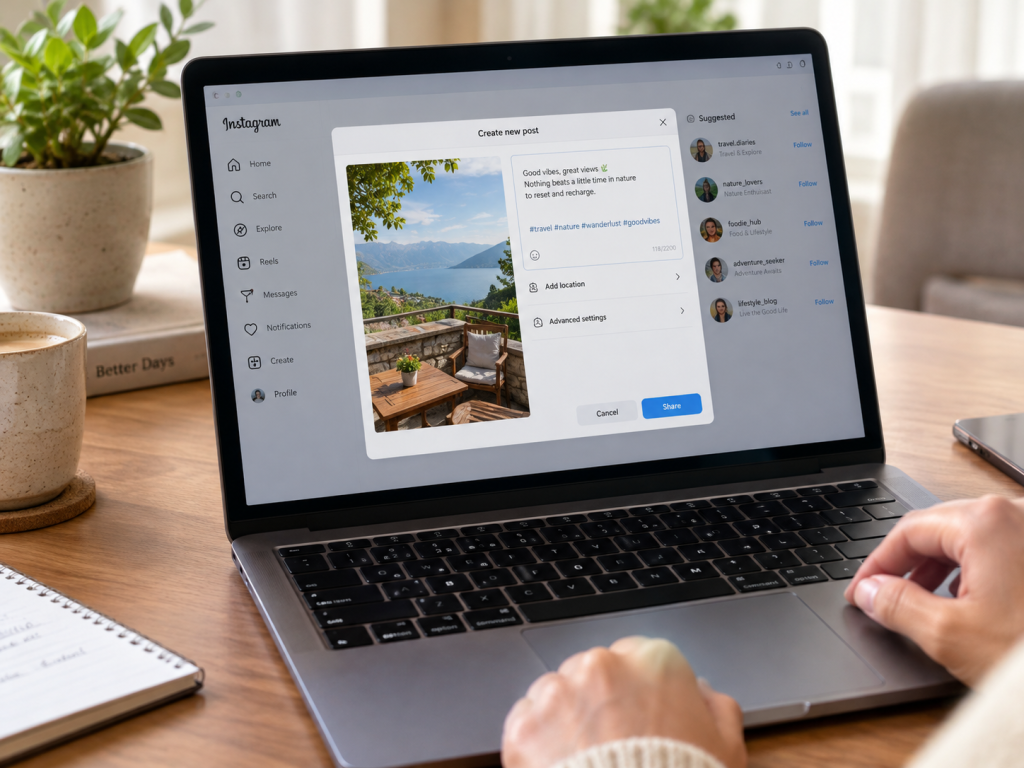
You can schedule Instagram Reels in advance in three ways: inside the Instagram app, through Meta Business Suite on desktop, or with a social media scheduler like Adorack. Each one lets you upload a Reel today and have it publish automatically at the time you choose. Instagram’s own scheduler reaches up to 75 days ahead.
If you post Reels regularly, publishing them live every time is a quick way to burn out. You end up posting whenever you find a free minute instead of when your audience is actually scrolling, and one busy week means a silent profile. Scheduling fixes that by separating the work of making Reels from the moment they go live.
This guide walks through all three methods step by step, explains what you need before you start, and covers the best practices and common mistakes that decide whether a scheduled Reel performs. By the end, you will know which method fits your workflow and how to fill a full week of Reels in one sitting.
Why Schedule Instagram Reels in Advance?
Scheduling Reels in advance saves time, keeps your posting consistent, and lets you publish at the hours your audience is most active, even when you are offline. Here is what that looks like in practice.
- You batch the work. Filming, editing and captioning are all creative tasks that go faster when you do them together. Schedule a week or a month of Reels in one session and the rest of your time is free for replying to comments and messages.
- You stay consistent. Instagram rewards accounts that show up regularly. A queue of scheduled Reels keeps your profile active through holidays, travel, illness and busy launch weeks.
- You post at the right time, not the convenient time. If your followers are most active at 8 pm and you are cooking dinner at 8 pm, a scheduled Reel still goes out on time.
- You reduce mistakes. Writing captions and hashtags in a calm moment, rather than rushing before a post, means fewer typos and better copy.
- You can plan around campaigns. Product launches, sales and events need Reels that go live on a specific day. Scheduling lets you build the whole sequence ahead of time.
Scheduling is not a replacement for being present. You still need to reply to comments and keep an eye on trends. It simply takes the posting step off your daily to-do list.
Before You Start: Account and Video Requirements
The main requirement is a public Instagram account, and a Professional (Business or Creator) account is the safest choice because it works with every method in this guide. Private accounts cannot schedule posts or Reels with Instagram’s own scheduler, and personal profiles are limited on third-party tools.
Switching to a Professional account takes about a minute. Open Instagram, go to Settings, choose the account type option, and switch to Creator or Business. It is free and does not change your followers. For desktop and third-party scheduling, link the account to a Facebook Page where the tool asks you to.
Next, check that your video is ready to publish. Reels that match Instagram’s specs look sharper and avoid being cropped or recompressed.
| Spec | Recommended |
| Aspect ratio | 9:16 (vertical, full screen) |
| Resolution | 1080 × 1920 pixels |
| File format | MP4 with H.264 video (MOV also works) |
| Frame rate | 23 to 60 fps |
| File size | Instagram allows up to 4 GB, but a few hundred MB is plenty for a 1080p Reel |
| Length | Reel limits have changed several times, so check the limit in the app before you plan long videos |
Two habits save a lot of trouble later:
- Keep important text and faces in the middle of the frame. Instagram overlays buttons, captions and your username near the edges, and your grid thumbnail crops the sides.
- Prepare everything before you schedule. Have the final video file, a caption, any hashtags, a cover image and your posting time ready. Stopping mid-way to write a caption is where most scheduling sessions slow down.
Method 1: Schedule Reels in the Instagram App
Instagram’s built-in scheduler is free, and it is the quickest way to schedule a single Reel from your phone. You can schedule up to 75 days ahead and up to 25 posts per day. Menu names move around between app versions and between iPhone and Android, so follow the idea if a label looks slightly different.
- Open the Reel creator. Tap the + icon and choose Reel.
- Pick your video. Select a clip from your camera roll, or record a new one. Trim it, add audio, text and effects as you normally would.
- Choose a cover. Tap the cover option and pick a frame or upload an image so your Reel looks good on your profile grid.
- Write your caption. Add your caption, hashtags, tags and location, then tap Next to reach the final sharing screen.
- Open the extra options. Scroll down to the advanced settings (on iPhone) or More options (on Android) until you see Schedule this Reel.
- Turn the toggle on. A date and time picker appears. Choose the day and the time you want the Reel to publish.
- Confirm. Tap Schedule. The Reel is now queued and will publish automatically.
To view, edit or delete a scheduled Reel, go to your profile, open the menu and look for Scheduled content. Tap a Reel there to change its time, edit the caption, or delete it.
The app scheduler is excellent for occasional posts, but it has limits. It works on a phone, one Reel at a time, and it only covers Instagram. It also does not support Stories or personal profiles, and some features, such as collaborations, may be unavailable on scheduled content. If you manage several platforms or several accounts, you will outgrow it quickly.
Method 2: Schedule Reels with Meta Business Suite
Meta Business Suite is Meta’s free desktop and mobile tool for managing Facebook and Instagram together. It is a good choice if you prefer working on a laptop, because uploading and writing captions on a bigger screen is easier than doing it on a phone.
- Connect your accounts. Go to Meta Business Suite and make sure your Instagram Professional account is linked to your Facebook Page.
- Start a new Reel. Click Create post or Create Reel, then select your Instagram account as the destination.
- Upload the video. Add your MP4 file from your computer. Wait for the upload and processing to finish.
- Add the details. Write the caption, add hashtags, choose a cover image and set any sharing options.
- Choose when it publishes. Instead of publishing immediately, select the scheduling option and pick the date and time.
- Schedule it. Click Schedule. The Reel appears in your content calendar.
You can manage everything from the Planner or content calendar in Business Suite, where scheduled Reels show up by date and can be edited, rescheduled or deleted.
The main advantage over the app is the desktop workflow, and you can also schedule Facebook posts from the same screen. The downside is that Meta Business Suite only covers Meta’s platforms. If you also publish to TikTok, YouTube, Pinterest or LinkedIn, you still need a separate tool for each, and the scheduling window and available options can differ from the Instagram app, so check what the date picker allows.
Method 3: Schedule Reels with Adorack
A social media scheduler like Adorack is the best option when Instagram is only one of your channels. You upload a Reel once, choose where it goes and when, and the tool publishes it for you, so you are not logging in to a separate app for every platform.
- Create your account and connect Instagram. Sign up at adorack.com and connect your Instagram Professional account. If you manage other networks, such as TikTok, YouTube, Facebook, Pinterest, LinkedIn, Threads or Bluesky, connect them here too.
- Create a new post. Open the post composer and choose Instagram as the destination.
- Upload your Reel. Add your vertical 9:16 MP4 video and wait for it to finish processing.
- Write the caption. Add your caption and hashtags. If you are posting the same video to other platforms, adjust the wording for each network so it reads naturally everywhere.
- Pick the date and time. Choose the exact time you want the Reel to go live, or place it in your queue so it takes the next open slot.
- Schedule it. Confirm, and your Reel is saved to your calendar and published automatically at the chosen time.
Why creators and small teams choose this route:
- One workflow for every platform. Upload a video once and send it to Instagram, TikTok and YouTube instead of repeating the work three times.
- A queue that keeps going. Organise content into categories, such as tips, behind the scenes and promotions, so your feed stays balanced without planning every slot by hand.
- Team collaboration. If you work with a teammate or a client, the whole team can work in one place instead of passing files through chat.
- One content calendar. See everything you have planned in one place, instead of checking each app separately.
If you only post a few Reels a month, Instagram’s built-in tools are enough. The value of a scheduler shows up when you are posting often, posting across platforms, or managing someone else’s accounts.
Which Method Should You Choose?
Use the Instagram app for the occasional Reel, Meta Business Suite if you want a free desktop workflow for Facebook and Instagram, and a scheduler like Adorack once you post regularly or across several platforms.
| Instagram app | Meta Business Suite | Adorack | |
| Cost | Free | Free | See adorack.com for plans |
| Works on | Phone | Desktop and phone | Browser |
| Platforms covered | Instagram only | Instagram and Facebook | Instagram and other networks |
| Best for | A few Reels a week | Facebook and Instagram on a laptop | Regular posting, several platforms, teams |
| Schedule window | Up to 75 days | Check the date picker | Set by your own calendar |
Best Practices for Scheduled Reels
A scheduled Reel performs the same as a live one only if you set it up with the same care, so build these habits into your batching session.
Pick your times from your own data, not a generic chart. Industry guides list “best times to post,” but your audience is what matters. Open your Instagram insights, find the hours your followers are most active, and test two or three slots over a few weeks. Keep the winners and drop the rest.
Spend real time on the first three seconds. Most viewers decide almost immediately whether to keep watching. Open with the payoff, a question or a clear visual hook, and put large on-screen text near the top-center of the frame.
Choose the cover on purpose. The cover appears on your profile grid and in the Reels tab. Pick a sharp, readable frame with a short title, and keep it consistent with your brand colors.
Write the caption for people first. Lead with the main point in the first line, because the rest gets cut off in the feed. Use a handful of relevant hashtags rather than a wall of them, and end with a clear action, such as asking a question or inviting a save.
Favor evergreen content when scheduling far ahead. A Reel that refers to a trending sound or this week’s news can feel stale when it goes live a month later. Mix timeless tips and how-tos with a few timely Reels that you schedule close to the date.
Batch in one block. Film several Reels on the same day, edit them together, then schedule the whole set in one sitting. A simple routine is to film on Monday, edit on Tuesday and schedule on Wednesday.
Keep a buffer of Reels. Aim to stay one to two weeks ahead. That cushion means a sick day or a missed shoot never creates a gap in your schedule.
Leave room to react. Schedule most of your calendar, but keep a couple of open slots each week for something topical or a Reel that suddenly makes sense to post. Be ready to reply to comments soon after each Reel goes live, since early engagement helps it travel.
Common Problems and How to Fix Them
Most scheduling failures come from account settings or file problems, and almost all of them are fixable in a few minutes.
| Problem | Likely cause | Fix |
| No “Schedule” option in the app | Account is private or personal | Switch to a public Professional (Creator or Business) account |
| Reel did not publish | Account disconnected, or the login or permission expired | Reconnect the account in your scheduling tool, then reschedule |
| Video looks blurry or cropped | Wrong aspect ratio or heavy compression | Export at 1080 × 1920 (9:16) as MP4 and keep key content centered |
| Upload keeps failing | File too large or unstable connection | Compress the video, use Wi-Fi and try again |
| Published at the wrong time | Time zone mismatch | Check the time zone in your app or scheduler settings |
| Trending audio missing | Some licensed music is unavailable on scheduled or third-party posts | Use original audio, or post that Reel natively at the time |
Two mistakes cause trouble more than any others:
- Scheduling and forgetting. Open your calendar once a week to confirm that everything still looks right, especially after changing a password or account settings.
- Posting identical content everywhere. A Reel that works on Instagram may need a different caption, hashtags or length on TikTok or YouTube Shorts. Adjust for each platform rather than copying and pasting.
Frequently Asked Questions
Can you schedule Instagram Reels for free?
Yes. The Instagram app and Meta Business Suite are both free, and many third-party schedulers offer a free or trial plan.
How far ahead can I schedule a Reel?
Instagram’s own scheduler lets you plan up to 75 days ahead, with up to 25 scheduled posts per day. Other tools may have their own limits, so check the date picker.
Do I need a Business account to schedule Reels?
A public Professional account (Creator or Business) is the safest requirement to plan around, and it works with every method in this guide. Private accounts cannot use Instagram’s built-in scheduler.
Can I schedule Reels from my computer?
Yes. Meta Business Suite and scheduling tools like Adorack run in a desktop browser, so you can upload your video and write captions on a larger screen.
Can I edit a scheduled Reel?
Yes. In the Instagram app, open Scheduled content from your profile menu. In Meta Business Suite or a scheduler, open your content calendar and select the Reel. You can usually change the caption and time, or delete it, before it publishes.
Do scheduled Reels get less reach?
There is no reliable evidence that a Reel published through Instagram’s supported scheduling tools is penalized for being scheduled. What matters is the content, the posting time and how people respond.
Can I schedule Reels to several platforms at once?
Yes, with a multi-platform scheduler. You upload once and choose which networks receive the video, adjusting the caption for each.
Start Scheduling Your Reels Today
Scheduling Instagram Reels in advance takes three things: a public Professional account, a finished 9:16 video, and a few minutes to pick a date and time. The Instagram app is the fastest start, Meta Business Suite is better for desktop work, and a scheduler is the right step once you post often or across several platforms.
Pick one method this week, film three to five Reels in a single session, and schedule them all before you close the laptop. A week of consistent posting with no daily effort is the easiest way to see whether scheduling works for you.
If you want one place to plan Instagram and your other social channels, try Adorack and schedule your next batch of Reels in a few clicks.