
Get started with Adorack
Let's know Adorack
Need help keeping up with your social media presence? That's why we found Adorack for your social media scheduling needs.
Using our tool's user-friendly features and seamless cross-platform interaction, you can easily plan, publish, and schedule your social media posts. Say goodbye to the hassle of manual posting and hello to a smarter, more efficient way to engage with your audience.
This guide has been put together to assist you in getting the most out of social media for your business. Let's get started with the sign-up process.
Sign up process
New user Sign up
To create a new account, navigate to the website URL and start with the sign-up process.
- On the Adorack Login page, locate and click the "Sign Up" button.
- You will be redirected to the sign-up form.
- Use a valid email address and a secure password to create a new account.
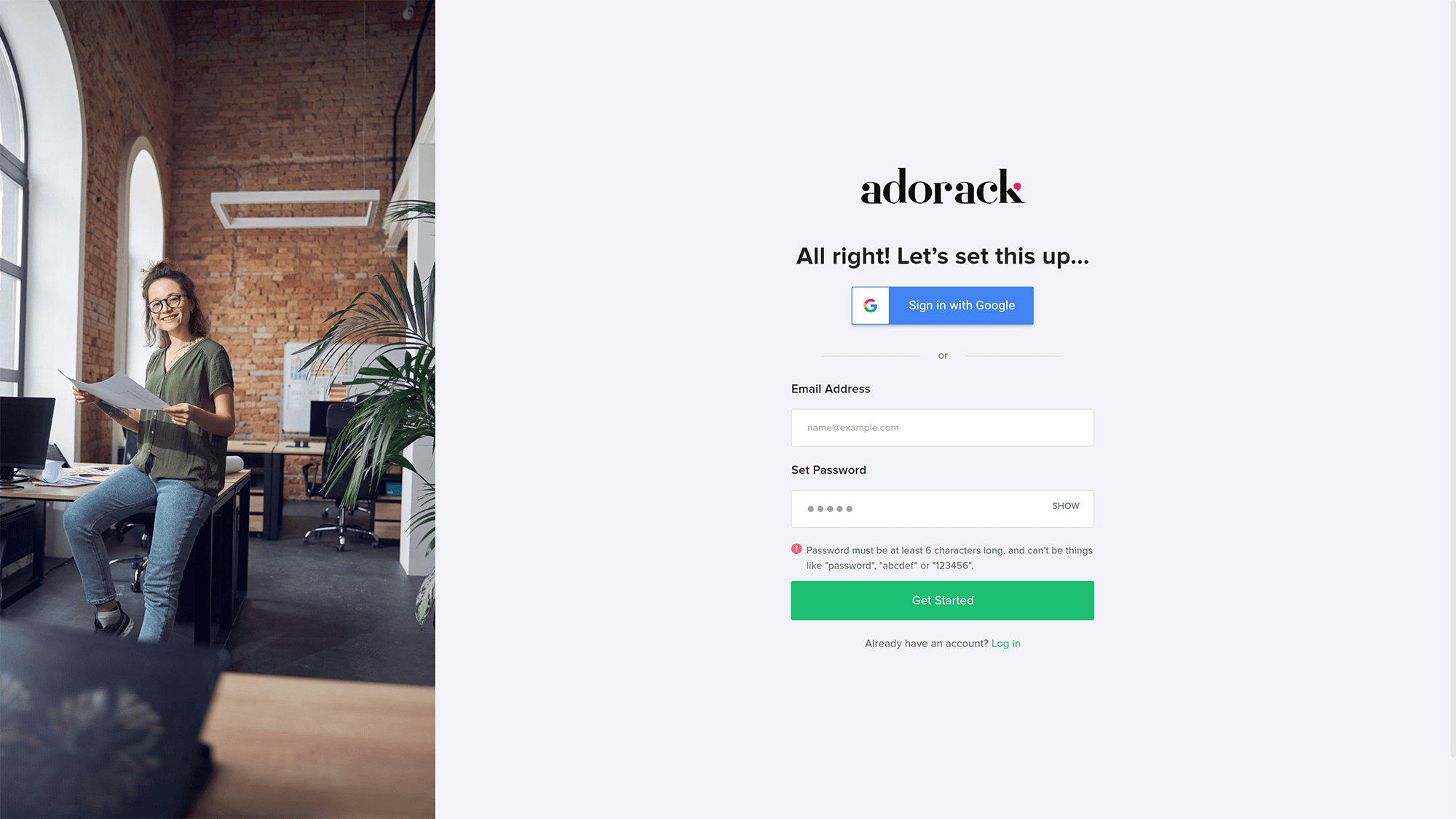
- To ensure the security of your account, we will send a confirmation code to the given email address.
- Once this step is completed, you will be redirected to the registration page.
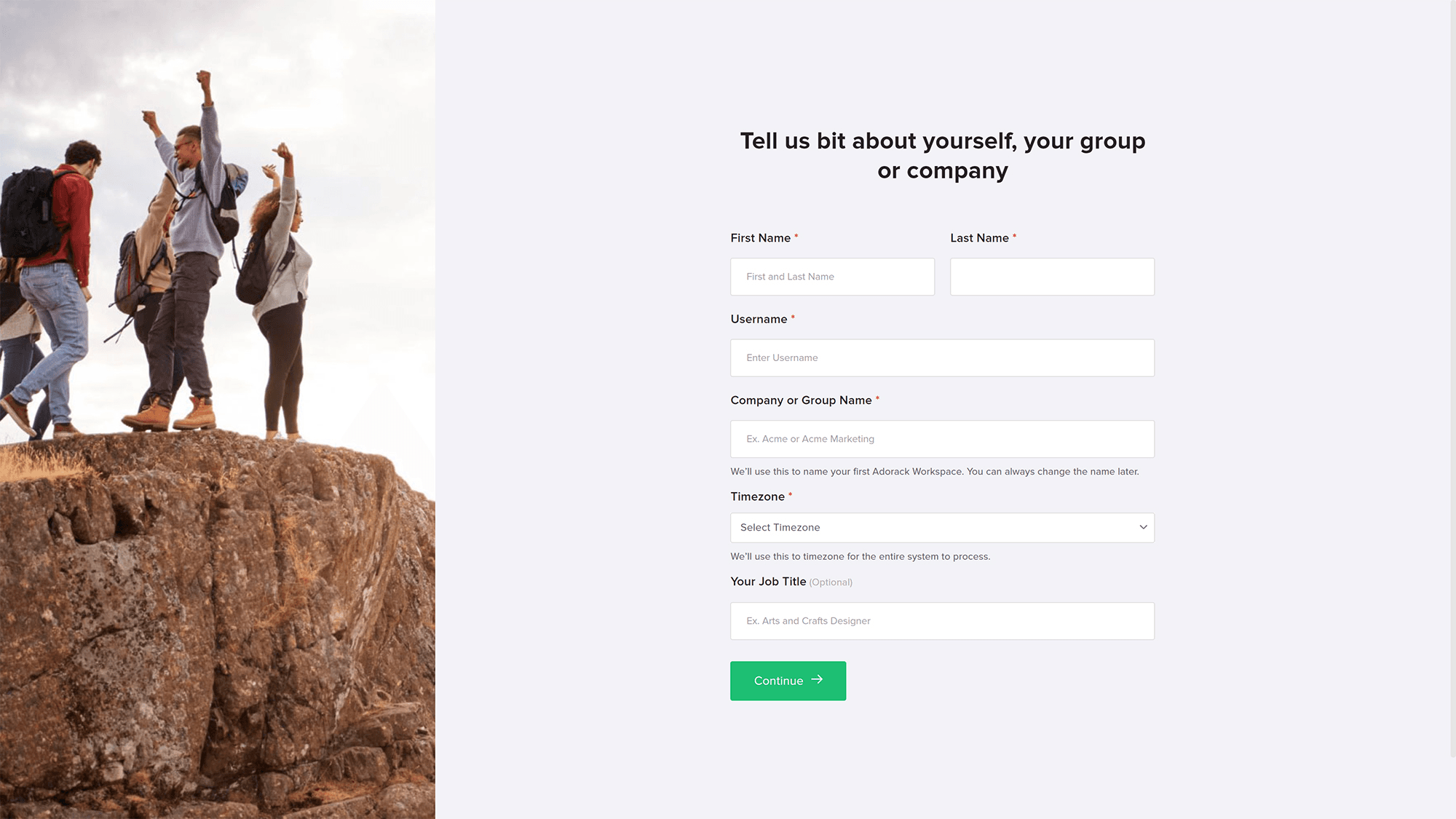
- Your account will be created successfully upon completing this step. You can then start working with Adorack and its features.
Sign up using a Google account
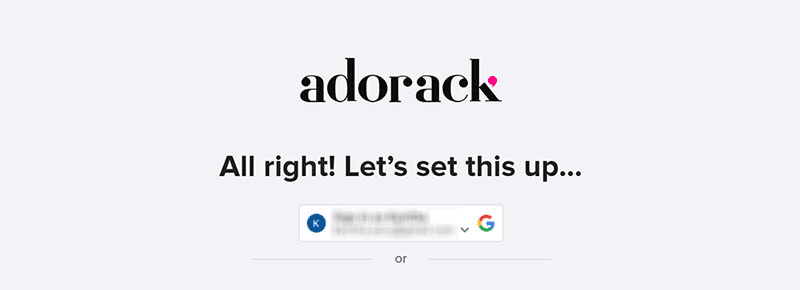
You can also sign up with your Google account to Adorack.
- On the website sign-up page, you'll see another sign-up option with a Google account.
- A new window will open, requesting permission to access your Google account information.
- Log in to your Google account if you are not already signed in.
- Grant permission for our tool to access your Google account data.
- Once you are signed in, you'll be taken to the registration page that will guide you through the process of creating your account.
Sign up through an invitation email
- When you are invited to Adorack by an account member, you will receive an invitation email with a signup link in it.
- Once you click the link, you will be routed to the signup page, and the following step involves the same process.
Verification and Agreement
Once you sign up with your email, you'll be sent a confirmation code for verification to the given email address.
- Check your email for the confirmation code and verify your account.
- However, this step can be skipped, but please note that unpaid users should verify the email within five days.
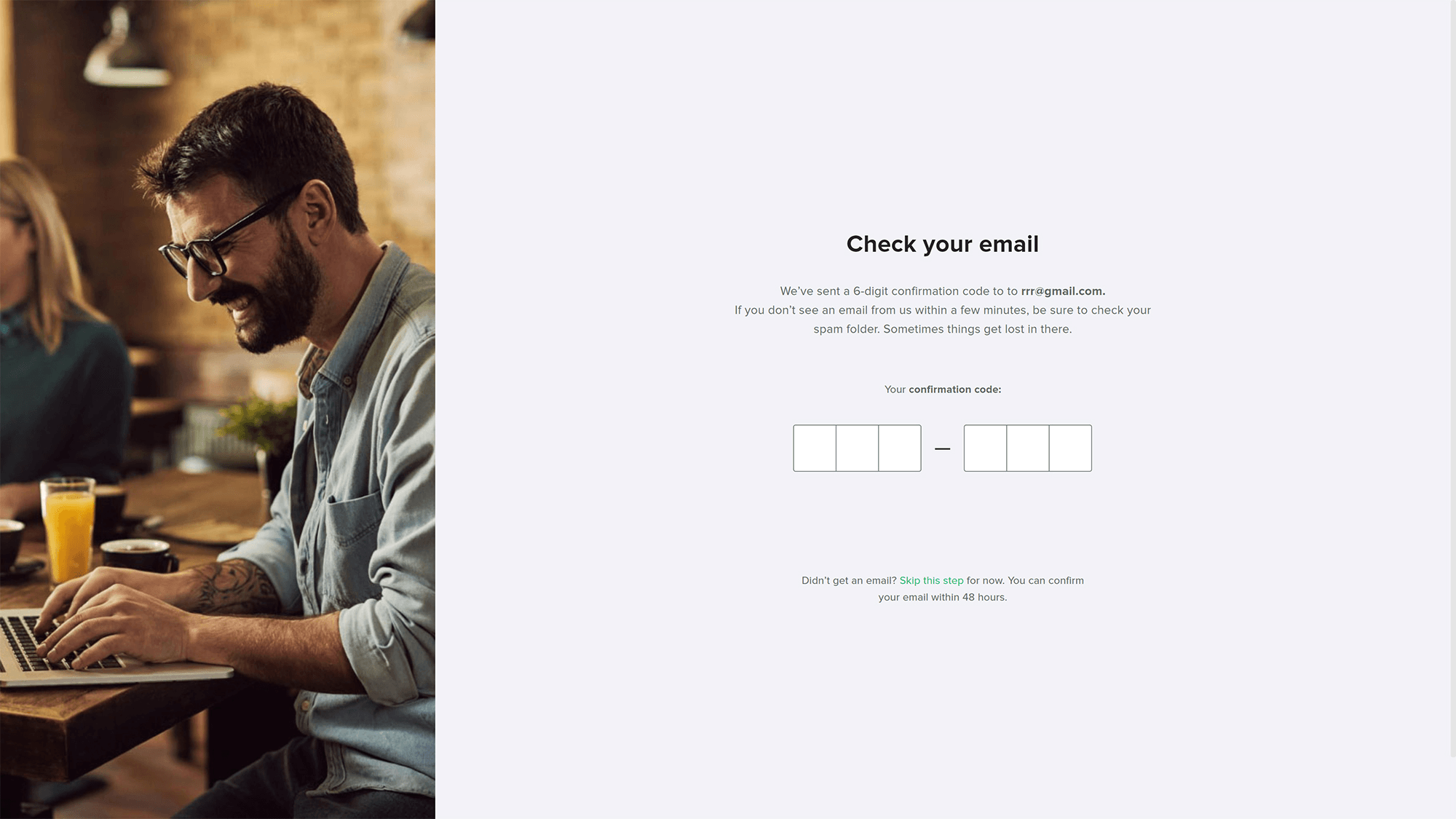
- Upon completing the confirmation step, you can register your account by entering the necessary details to create an active account.
- Read and accept the Terms of Service and Privacy Policy before working with Adorack.